
Which gaming monitor suits both your console and PC setups best
By Rocker Updated 9 min read
As an Amazon Associate I earn from qualifying purchases. That costs you nothing and does not decide what gets recommended. We also earn a commission from some links to partner brands (GearUP, World of Tanks, YUPLAY, GAMIVO).
On this page (8 sections)
- The short version
- Do console and PC gaming have different display requirements?
- What monitor specs affect performance on console vs PC?
- Which input ports and refresh rates work best for both?
- How to pick a monitor that handles typical console and PC resolutions and frame rates?
- What common issues arise when using one monitor for both and how to avoid them
- Which gaming monitor suits both your console and PC setups best
- Questions people still ask
In short: A 27-inch, 144Hz monitor with HDMI 2.1 and DisplayPort suits both console and PC gaming well. It handles 4K 60fps on consoles and up to 144fps on PC, balancing refresh rate and resolution effectively.
Part of our guide on best monitor for ps5 with hdmi 2.1

LG 27GR83Q-B 27-inch Ultragear QHD (2560×1440) IPS Gaming
Supports ultra-smooth gaming with a 240 Hz refresh rate, far exceeding the 120 Hz needed for top console and
Check it on Amazon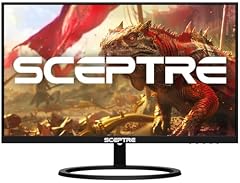
Sceptre IPS 27 Inch 2K 2560 x 1440p QHD 75Hz DisplayPort HDMI
Offers a 75 Hz refresh rate, which is above the 60 Hz minimum and suitable for smooth gaming on a 27-inch
See this alternative
ASUS VA27AQ 27 Inch 1440P QHD IPS Computer Monitor
Provides a 75 Hz refresh rate, ensuring smooth gameplay and visual performance on a 27-inch 1440p monitor.
See this alternative| Product | refresh rate (Hz) | Verdict | |
|---|---|---|---|
| LG 27GR83Q-B 27-inch Ultragear QHD (2560×1440) IPS Gaming Monitor LG | 240 Hz refresh rate directly stated, above 120 Hz threshold | Meets it | View on Amazon |
| Sceptre IPS 27 Inch 2K 2560 x 1440p QHD 75Hz DisplayPort HDMI 99% Sceptre | 75 Hz refresh rate directly stated, above 60 Hz threshold | Meets it | View on Amazon |
| msi PRO MP243L E14 24-inch IPS 1920 x 1080 (FHD) Gaming Office Monitor msi | 144 Hz refresh rate directly stated, above 60 Hz threshold | Meets it | View on Amazon |
| New! Sceptre Curved 24-inch Prime Gaming Monitor 1080p 1500R 1ms up Sceptre | 180 Hz refresh rate directly stated, above 60 Hz threshold | Meets it | View on Amazon |
| ASUS VA27AQ 27 Inch 1440P QHD IPS Computer Monitor ASUS | 75 Hz refresh rate directly stated, above 60 Hz threshold | Meets it | View on Amazon |
| Optimal size | 27 inches |
|---|---|
| Console refresh | 60 Hz |
| PC refresh | Up to 144 Hz |
| Key port | HDMI 2.1 |
| Resolution support | 4K UHD |
The short version
- Console gaming demands stable 60fps at 4K, PC gaming often needs higher refresh rates.
- HDMI 2.1 is essential for next-gen consoles; DisplayPort is key for high refresh PCs.
- 144Hz refresh rate covers PC gaming fluidity without compromising console compatibility.
- A 27-inch screen balances immersion and readability for mixed use.
- Avoid monitors without HDMI 2.1 if using PS5 or Xbox Series X for max console performance.
Do console and PC gaming have different display requirements?
Consoles typically output games at 4K resolution with frame rates capped at 60fps or lower. This means stable 60Hz refresh and HDMI 2.1 support are vital for smooth gameplay on modern consoles like PS5 and Xbox Series X.
PC gaming varies widely. Many PC gamers push refresh rates from 60Hz up to 144Hz or even 240Hz, especially in fast-paced esports titles. PCs also support DisplayPort, which allows higher frame rates and adaptive sync technologies.
The differing needs mean a monitor must support stable 60Hz for consoles but also support higher refresh rates and DisplayPort for PC. This dual support is key to a monitor suitable for both.
Some gamers use older consoles that output 1080p or 1440p instead of 4K. These lower resolutions demand less bandwidth but may benefit from monitors that smoothly upscale without blurring. A good monitor for both setups should handle these scaling tasks effectively to avoid soft images. For the detail, see our notes on console gaming 1440p or 4k.
Competitive PC gamers often require adaptive sync technologies like G-Sync or FreeSync to reduce screen tearing and stutter. Consoles don’t yet use these, but their inclusion doesn’t hurt console performance and future-proofs the monitor.
Console gamers often sit further from the screen, around 3 to 4 feet, while PC gamers sit closer, 1.5 to 2 feet. A 27-inch screen size matches both viewing distances well without forcing uncomfortable eye movement or loss of detail.
What monitor specs affect performance on console vs PC?
The refresh rate controls how smooth motion looks. Consoles max out at 60Hz, so anything higher doesn't improve console gameplay but benefits PC titles by reducing motion blur and input lag. There is more on 240hz vs 144hz refresh rate in a separate guide.
Resolution is another key spec. Consoles typically target 4K UHD or 1440p, while many PC gamers use a range from 1080p up to 4K depending on hardware and game.
Response time affects perceived input lag and ghosting. Lower is better, ideally 1-4ms. Both PC and console games benefit from fast response times.
Adaptive sync support, like FreeSync or G-Sync, primarily benefits PC gamers by preventing screen tearing. Consoles don’t currently use these technologies. It helps to understand can i use a gaming monitor for console before going further.
HDR support enhances colors and contrast on both consoles and PCs. Consoles like the PS5 support HDR10, so a monitor with at least DisplayHDR 400 certification will improve image quality visibly.
Contrast ratio and black levels differ across panel types. VA panels offer better black levels beneficial for darker games, but IPS panels provide more accurate colors. Choosing depends on your priority between color vibrancy and contrast.
Some monitors add game modes that tune sharpness and color saturation specifically for console or PC gaming. These modes can improve perceived image quality without manual adjustments. We go through avoiding oled screen burn during gaming step by step elsewhere on the site.
LG 27GR83Q-B 27-inch Ultragear QHD (2560×1440) IPS Gaming Monitor
Supports ultra-smooth gaming with a 240 Hz refresh rate, far exceeding the 120 Hz needed for top console and PC gaming performance.
- Height 22.7 Inches
- Length 10.0 inches
- Weight 13.7 pounds
Which input ports and refresh rates work best for both?
Modern consoles require HDMI 2.1 to output 4K at 60fps. Older HDMI versions limit frame rates or resolutions. A monitor lacking HDMI 2.1 cuts console performance.
PCs prefer DisplayPort for high refresh rates exceeding 60Hz, plus adaptive sync. Some monitors offer both DisplayPort and HDMI 2.1, covering both platforms.
A refresh rate of 144Hz is a sweet spot. Consoles use 60Hz, so the monitor can switch refresh rates depending on input signal.
Monitors with variable refresh rate support (FreeSync/G-Sync) work well on PCs but don't impact consoles yet.
Sceptre IPS 27 Inch 2K 2560 x 1440p QHD 75Hz DisplayPort HDMI 99% sRGB
Offers a 75 Hz refresh rate, which is above the 60 Hz minimum and suitable for smooth gaming on a 27-inch 1440p monitor.
- Size 27 2k
- Height 8.27 inches
- Weight 11.4 pounds
How to pick a monitor that handles typical console and PC resolutions and frame rates?
Look for a monitor supporting native 4K resolution to match consoles that output 4K 60fps. Size around 27 inches gives a good pixel density for sharp images without text shrinking.
Ensure the monitor can switch refresh rates fluidly between 60Hz (console) and 120Hz or 144Hz (PC). This keeps motion smooth on both platforms.
Response time around 1-4 ms is optimal to reduce ghosting and input lag on all games.
Check the monitor’s input lag ratings. A lag under 20ms is good for competitive gaming on both systems.
Look for monitors with good scaling algorithms to handle upscaling from 1080p or 1440p to 4K without introducing blur or artifacts. This helps when a console outputs lower resolutions due to performance settings.
Monitors with native 1440p resolution can offer a middle ground, displaying sharp images for PC and acceptable upscaled images for consoles. However, native 4K is usually preferred for the best console experience.
Check if the monitor supports automatic refresh rate switching to avoid flicker or input lag when switching between PC and console sources. This ensures smooth transitions without manual input changes.
| Spec | Ideal for Consoles | Ideal for PC | Balanced Choice |
|---|---|---|---|
| Resolution | 4K UHD | Varies 1080p-4K | 4K UHD native |
| Refresh Rate | 60 Hz | 120-144 Hz | 144 Hz switchable |
| Input Ports | HDMI 2.1 | DisplayPort + HDMI 2.1 | Both HDMI 2.1 + DisplayPort |
| Response Time | 4 ms or less | 1-4 ms | 1-4 ms |
| Adaptive Sync | No effect | FreeSync/G-Sync | Supports FreeSync |
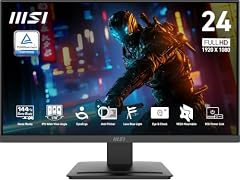
msi PRO MP243L E14 24-inch IPS 1920 x 1080 (FHD) Gaming Office Monitor
Delivers a high 144 Hz refresh rate on a 24-inch 1080p monitor, well above the 60 Hz baseline for smooth gaming.
- Weight 9.5 Pounds
- Length 7.13 inches
- Height 15.65 Inches
What common issues arise when using one monitor for both and how to avoid them
One issue is cable confusion. Consoles require HDMI 2.1 cables to reach 4K60. Using older HDMI cables limits performance.
Input lag can spike if you use the wrong port. HDMI 2.1 ports often have lower lag than HDMI 1.4 or 2.0 ports.
Resolution scaling problems happen when consoles output 4K but the monitor is 1440p or lower, causing image blur or stretching.
Monitors without DisplayPort limit high-refresh PC gaming to 60Hz, causing choppier motion in fast-paced games.
To avoid these, check your cables, use correct ports, and pick a native resolution matching your consoles.
- Use certified HDMI 2.1 cables for consoles
- Switch monitor inputs based on the device used
- Avoid monitors with only 1080p resolution if you want console 4K clarity
- Ensure your PC supports DisplayPort for high refresh rates

New! Sceptre Curved 24-inch Prime Gaming Monitor 1080p 1500R 1ms up to 180Hz
Supports up to 180 Hz refresh rate on a 24-inch 1080p curved monitor, well above the 60 Hz minimum for smooth gaming.
- Size 24 inches
- Length 7.6 inches
- Height 16.3 inches
Which gaming monitor suits both your console and PC setups best
The best monitor for both console and PC is a 27-inch 4K UHD display with a 144Hz refresh rate, HDMI 2.1 for consoles, and DisplayPort for PC. This setup meets the 60Hz 4K console requirement while supporting high frame rates on PC.
Choose IPS or VA panels for good color and viewing angles. IPS is generally better for color accuracy which benefits both platforms.
Avoid ultrawide or 32-inch+ monitors if you want consistent pixel density with console inputs, as consoles favor 16:9 aspect ratios and 27-inch monitors keep UI sharp and readable.
This balance trades a slight price premium for flexibility. Cheaper monitors may lack HDMI 2.1 or high refresh rates, hurting one platform or the other.
| Option | Best for | Key strength | Main drawback |
|---|---|---|---|
| 27" 4K 144Hz IPS HDMI2.1 + DP | Most gamers – balanced | 4K 60Hz console + high refresh PC | Higher cost |
| 27" 1440p 144Hz IPS HDMI2.1 + DP | Budget-conscious | Good refresh rates, lower cost | No native 4K console support |
| 32" 4K 60Hz HDMI2.1 only | Console-focused | Excellent 4K console image | Limited PC refresh rate |
| 27" 1080p 240Hz DisplayPort only | Competitive PC only | Ultra-fast refresh for PC | No 4K or HDMI 2.1 for consoles |
Questions people still ask
Can I use a 144Hz monitor with a console that outputs 60fps?
Yes. The monitor will display console games at 60Hz. The higher refresh rate won't damage the experience but won't increase frame rates.
Is DisplayPort necessary for console gaming?
No. Consoles do not use DisplayPort. HDMI 2.1 is required for top console performance.
What if my monitor lacks HDMI 2.1 but has HDMI 2.0?
You'll be limited to 4K at 30fps or 1080p at 60fps on consoles, which reduces visual smoothness and clarity.
Should I prioritize resolution or refresh rate for mixed gaming?
For consoles, prioritize resolution (4K). For PC, refresh rate matters more. Balanced monitors support both.
Do adaptive sync technologies help consoles?
Currently no. Consoles don’t support FreeSync or G-Sync, so this benefits PC only.