
Input lag: the millisecond cutoff, and how to measure yours
By Rocker Updated 14 min read
As an Amazon Associate I earn from qualifying purchases. That costs you nothing and does not decide what gets recommended. We also earn a commission from some links to partner brands (GearUP, World of Tanks, YUPLAY, GAMIVO).
On this page (9 sections)
- The short version
- What input lag actually is, and what it isn't
- What is a good input lag for gaming, in milliseconds
- How the acceptable figure shifts by game and by screen
- How to measure input lag on your own display and PC without lab gear
- What to switch off when the reading is over the line
- Why keyboard and mouse lag is a separate chain, and how to isolate it
- What display lag and processing lag mean on a spec sheet
- Questions people still ask
In short: Aim for under 20 ms of total input lag for most games, and under 10 ms if you play shooters seriously. Above about 35 ms the game starts feeling like it's on rails. Your display's game mode, not the panel, decides most of it.
Part of our guide on best monitor for ps5 with hdmi 2.1
| Competitive shooter | under 10-15 ms total |
|---|---|
| Single-player games | under 30-40 ms feels fine |
| Cloud streaming target | under 60 ms end to end |
| TV without game mode | 60-120 ms, unplayable for shooters |
| Vsync cost | roughly one frame, 8-16 ms |
| 1000 Hz mouse polling | adds about 1 ms |
The short version
- Total lag is display lag plus your device plus the signal chain; the display is usually the biggest chunk
- Vsync adds one or more frames of delay; turn it off or use a variable sync mode
- Test your own lag by filming a timer with a high frame rate phone camera and comparing two clocks
- Network ping is a different number; under 50 ms ping feels fine online even with a slow display
- Wireless mice and keyboards add a few ms at most on modern gear; check polling rate before blaming them
- Check published input lag measurements from sites like RTINGS before buying a TV or monitor
What input lag actually is, and what it isn't
Input lag is the time between your action and the result appearing on screen: you click, and the shot leaves the barrel. On a decent setup the whole chain runs 15-30 ms. On a living-room TV with the wrong settings it can hit 100 ms or more. No amount of expensive hardware fixes that.
The number people confuse it with most is frame rate. Low frame rate makes the game choppy, but each frame is still correct. Input lag makes the game late, even when it's perfectly smooth. You can have 120 fps and still feel delayed if the chain is slow.
Three other numbers get blamed for it. Response time is how fast a single pixel changes colour; slow response shows up as ghosting, not delay. Network ping is round-trip time to a game server, a completely separate chain. And stutter is frames arriving at uneven intervals, a timing problem rather than a delay problem.
Why does the split matter? Because the fixes are different. Choppy gameplay means you need more frame rate. Late gameplay means you need to cut milliseconds out of the chain. The chain is measurable. Before you commit to anything, it is worth looking at hdmi switch input lag for switch 2.
| Problem | What you see | Typical fix |
|---|---|---|
| Input lag | Game feels late, motion is smooth | Game mode, vsync off, faster display |
| Low frame rate | Game feels choppy under load | Lower settings, faster GPU |
| Slow response time | Ghosting trails behind moving objects | Overdrive setting, faster panel |
| High ping | Enemies teleport, hits register late | Wired ethernet, better routing |
What is a good input lag for gaming, in milliseconds
Here are the working thresholds. Under 10 ms total, the game feels instant. Competitive players can't tell it from zero. Between 10 and 20 ms still feels immediate to most people. That covers most good monitors and TVs in game mode. Between 20 and 35 ms you stop noticing in many games but start losing duels you should win.
Above 35 ms the game starts feeling like it's on rails. Your input happens slightly before the screen catches up. Casual players adapt. Shooter players don't. Past roughly 70 to 100 ms, which is where a TV without game mode lands, anything twitchy becomes frustrating.
These are totals for the whole chain, not just the panel. A display measuring 5 ms can still sit behind a slow game engine, a capped frame rate, or two frames of vsync. When people say their 'laggy monitor' was fixed by a settings change, that's usually what happened: the total dropped into the band. There is more on reducing tv input lag in a separate guide.
A quick rule of thumb you can carry out of this page: if your total is under one frame at your frame rate, you're fine. One frame at 60 fps is 16.7 ms. One frame at 120 fps is 8.3 ms. Two frames or more and you'll feel it. To check which frame you're in, divide your measured lag by your frame time. A 12 ms result at 60 fps (16.7 ms per frame) is under one frame. A 25 ms result is over.
How the acceptable figure shifts by game and by screen
The cutoff moves with what you play. A competitive shooter punishes every millisecond because you're reacting to flicks on screen. A single-player action game or RPG tolerates more without it changing how the game plays. Turn-based and strategy games can absorb anything; the display never lies to you about timing.
Cloud streaming changes the arithmetic entirely. Your chain now includes the server, the internet, and the encoder. That typically adds 30-50 ms before your display is even counted. Chasing 10 ms on a cloud stream is wasted effort. Aim for under 60 ms end to end and a stable connection instead. If your measured display lag is fine but online matches still feel heavy, the network is the suspect. Compare your in-game ping to a wired connection and to a ping test to the same region. The difference isolates whether the path to the server is adding the delay. If that sounds like your situation, read up on ps5 tv input lag comparison next.
The screen itself sets the floor. A dedicated gaming monitor at 144 Hz or higher typically measures single-digit display lag. A modern TV in game mode lands around 10-20 ms, fine for everything except serious shooters. A laptop panel is usually decent; the machine's own processing adds a bit. A handheld like a Switch 2 docked or undocked sits mid-pack, good enough for its library.
The trap is the TV's non-game modes. Picture processing adds delay. One setting fixes it. The next section shows how to check whether yours is actually on. When shopping for a new TV or monitor, check published input lag measurements from sites like RTINGS before you buy. You'll see the difference between a 10 ms panel and a 50 ms one before you unpack it.
VR has a different tolerance entirely. Motion-to-photon latency under 20 ms is the target for most headsets, because your head is moving constantly. Above that, the world starts drifting behind your motion and nausea builds. VR systems measure and compensate for this internally with prediction and reprojection. If a VR game feels swimmy, check the headset's performance overlay for dropped frames or high motion-to-photon readings rather than blaming your display.
| Situation | Target total lag | Why |
|---|---|---|
| Competitive shooter | under 10-15 ms | Reaction windows are tiny |
| Single-player action | under 30-40 ms | Timing tolerance is generous |
| Turn-based or strategy | under 80 ms | No real-time reactions |
| Cloud stream | under 60 ms end to end | Network adds 30-50 ms regardless |
| VR headset | under 20 ms motion-to-photon | Head tracking must stay locked |
| 144 Hz gaming monitor | single digits typical | Minimal processing |
| TV in game mode | 10-20 ms typical | Processing bypassed |
| TV without game mode | 60-120 ms | Full picture pipeline in the path |
- gaming monitor: single-digit display lag
- TV game mode: fine for most genres
- handhelds: consistent, tuned chains
- TV without game mode: 60 ms or worse
- cloud streams: network dominates the number
- laptops: processing adds a few ms
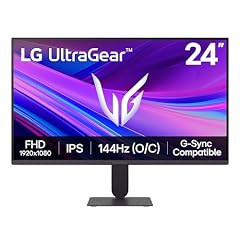
LG 24G411A-B 24-inch Ultragear Full HD (1920 x 1080) IPS Gaming Monitor
Gives you a 120Hz native panel that overclocks to 144Hz with Dynamic Action Sync to cut input lag on your display.
How to measure input lag on your own display and PC without lab gear
You don't need a photo transistor and an oscilloscope. You need a phone that records slow motion. Many recent phones record 240 fps slow motion; check your camera app's settings to confirm. Frame interval at 240 fps is about 4.2 ms, plenty for this test. Set the phone on something solid so the frames stay readable. The method is the two-clock test: get two clocks on screen, one showing your input and one showing the game, then count frames between them.
Put a stopwatch or millisecond timer on your phone and film it side by side with your game screen. Trigger something with a visible on-screen result: a shot in a shooting range, a stopwatch in a game, a cursor click on a test page. Count the frames between the trigger and the response at 240 fps. Multiply by 4.2. That's your total end-to-end lag in milliseconds.
The counting method: scrub through the video frame by frame. Mark the frame where the input happens. You won't see the click itself, but you'll see the exact frame where motion starts: your hand moves, the mouse button compresses, or the key dips. Then mark the frame where the screen changes: the cursor jumps, the shot fires, the timer advances. The gap between those two frames is your measurement. Subtract the first frame number from the second, multiply by 4.2, and you have milliseconds.
A cleaner version on PC: display a live millisecond timer on screen, film it, and click your mouse so the cursor moves. The gap between the click and the cursor jump is your mouse-plus-display chain. Test pages that flash a square on click do the same job with less guesswork.
Two caveats. This measures the whole chain, so a high reading could be the game engine, not the panel. Compare against a responsive menu or a simple test page to isolate. And 240 fps has about a 4 ms floor of uncertainty. Treat results within a few milliseconds of each other as equal.
- Set your phone to 240 fps slow motion and prop it so both screens are in frame.
- Open a millisecond timer or a click-flash test page on the screen under test.
- Record while triggering an input with a visible on-screen result.
- Step through the video frame by frame and count frames from input to response.
- Multiply the frame count by 4.2 to get milliseconds.
- Repeat three times and take the middle value; single runs are noisy.
What to switch off when the reading is over the line
Work down this list in order. The first two fixes do most of the work. Each one either removes a buffer or removes processing from the chain.
Game mode: on TVs, turn it on. It bypasses the picture-processing pipeline. Published measurements from RTINGS show game mode can cut lag from 60-100 ms down to 10-20 ms on TVs with heavy processing, and less on modern sets with lighter pipelines. Some TVs detect games automatically. Verify in the picture settings it actually engaged. When game mode is off, audio often lags too; voices drift out of sync and gunshots sound late. Game mode fixes both at once.
Vsync: off, or replaced by a variable sync mode (G-Sync, FreeSync, VRR). Standard vsync holds frames in a queue, which adds one to two full frames. That's 16-33 ms at 60 fps. If you must run vsync for tearing, a variable sync mode with an fps cap just under your refresh rate is the modern answer.
Scaling and processing: on consoles, feed the TV native 4K from the console rather than letting the TV upscale 1080p. Turn off motion smoothing, dynamic contrast and any 'enhancement' modes on the game input. If you're on a console and your TV supports HDMI 2.1, enable Auto Low Latency Mode (ALLM) so the TV switches to game mode automatically when you start a game. For 120 fps console play, confirm 4K120 is enabled in both the console and TV settings.
Peripherals: set your mouse to its highest polling rate, usually 1000 Hz. That adds about 1 ms versus 125 Hz. For wireless gear, use the 2.4 GHz dongle over Bluetooth. Good 2.4 GHz wireless adds as low as a few milliseconds in published latency tests. Bluetooth adds noticeably more, especially on keyboards.
Frame rate: if your GPU delivers 40 fps, no display setting saves you. Either lower settings until you hit 60, or cap and accept the slower feel. Latency and frame rate trade against each other. Below roughly 60 fps, frame rate wins the argument.
- Game mode: always on for the game's HDMI input; verify it engaged
- Vsync: off, or VRR with an fps cap just under refresh
- Motion smoothing and dynamic contrast: off on the gaming input
- Mouse polling: 1000 Hz over the 2.4 GHz dongle, not Bluetooth
- Console output: native resolution, no TV-side upscaling
- HDMI 2.1 consoles: enable ALLM and 4K120 in both console and TV settings
Why keyboard and mouse lag is a separate chain, and how to isolate it
Your click travels its own road before the display even hears about it. Switch in the mouse or keyboard, the USB polling loop, the PC's game engine reading the input, then the frame being rendered. That road typically costs a few milliseconds for modern wired gear, and a few more for good wireless.
The game engine can add its own buffer on top. Some titles read input once per rendered frame, which you can't remove. If your measured end-to-end lag is high but the display tests fine, suspect the game itself. Compare two games on the same screen. The difference you see is the software.
Isolating the peripheral chain is straightforward. Run a click-flash test page and film it with your phone. The gap between your click and the cursor move is mouse plus PC plus display, with no game involved. Swap in a known-fast wired mouse. The change in the reading isolates your usual mouse. Do the same with a wired keyboard versus your wireless one.
When the peripheral chain measures fine but the game still feels late, the remaining suspect is almost always frame delivery. Uncapped fps spiking wildly, or a background process stealing frame time. Cap fps, close the extras, and re-test before blaming hardware.
What display lag and processing lag mean on a spec sheet
When a review site publishes an 'input lag' number, it's already a bundle. It includes the time the panel takes to process the signal and the time it takes to light the pixels. Some manufacturers split these into 'display lag' and 'processing lag' on spec sheets. That split doesn't help much, because you feel the total.
The number you want is the one marked 'input lag in game mode' or 'total input latency'. If the sheet only lists response time, you're looking at the wrong line. Response time is pixel transition speed, measured in gray-to-gray milliseconds. It causes ghosting, not delay. Input lag is the time from signal in to image out.
Published measurements from sites like RTINGS test the whole chain with the same camera method you'd use at home. They isolate game mode, different resolutions, and different refresh rates. Compare those before you buy. A TV with 12 ms lag in game mode and 85 ms with it off tells you everything you need to know. For example, RTINGS measured the LG C3 OLED at 5.2 ms in game mode at 4K 120Hz, and the Samsung QN90C at 10 ms. Those are real-world numbers you can trust before you unpack anything.
Chase settings before hardware: game mode and vsync discipline put most setups inside the 20 ms band.
Questions people still ask
Does a higher refresh rate reduce input lag?
Yes, twice over. Frames arrive more often, so each frame waits less. Higher refresh means shorter frame intervals: at 60 Hz each frame takes 16.7 ms, at 120 Hz it's 8.3 ms, at 240 Hz it's 4.2 ms. The added processing cost of faster panels is usually tiny. The savings come mostly from frames arriving sooner.
Is input lag worse on wireless mice and keyboards?
Modern 2.4 GHz wireless gear adds as low as a few milliseconds over wired in good implementations, which is hard to feel. Bluetooth is the exception, adding more and jittering. For anything twitchy, use the dongle.
Can I feel the difference between 10 ms and 20 ms?
Many shooter players insist they can feel it. Blind tests rarely support that. Below roughly 35 ms, feel is subjective. Above it, the delay becomes obvious.
Does input lag matter for single-player games?
Far less. Turn-based games don't care at all. Action games feel fine under 30-40 ms. Spend your effort on frame rate and image quality there instead.
Why does my TV feel laggy even in game mode?
Check the input itself has game mode enabled rather than the TV globally. Confirm motion smoothing is off. Verify the console is outputting the TV's native resolution. If it still reads high, film the two-clock test to confirm before buying anything.